Record voice to text live, with translation
Get instant transcripts from any speech. Perfect for meetings, live streams, seminars, and events.
Live transcription in 99 languages
Translate into 140+ languages
Highlight, summarize, and export files with ease
Try it free, 10 minutes per recording

Transcribe in Small Meetings
Save time on meeting reports by using Vocalog on your laptop, tablet, or mobile phone to record audio and instantly convert it into text. Once transcribed, you can highlight, search keywords, summarize, review scripts, or download the content files to continue work seamlessly.


Record Audio in Large Meetings
Connect the computer running Vocalog to a microphone or the room's sound system for meetings with many people. Record as long as your package allows, then download the original audio or the transcript.
Use with OBS for Live Captions
Enable caption mode when streaming on Facebook Live, hosting seminars, or displaying captions on stage. Vocalog shows the speaker’s speech and its translation in real time.

You can customize the display to suit your needs — arrange original and translated text, adjust font size, and set line spacing and line length for a polished, professional look.
Steps to Transcribe in Real Time and Translate
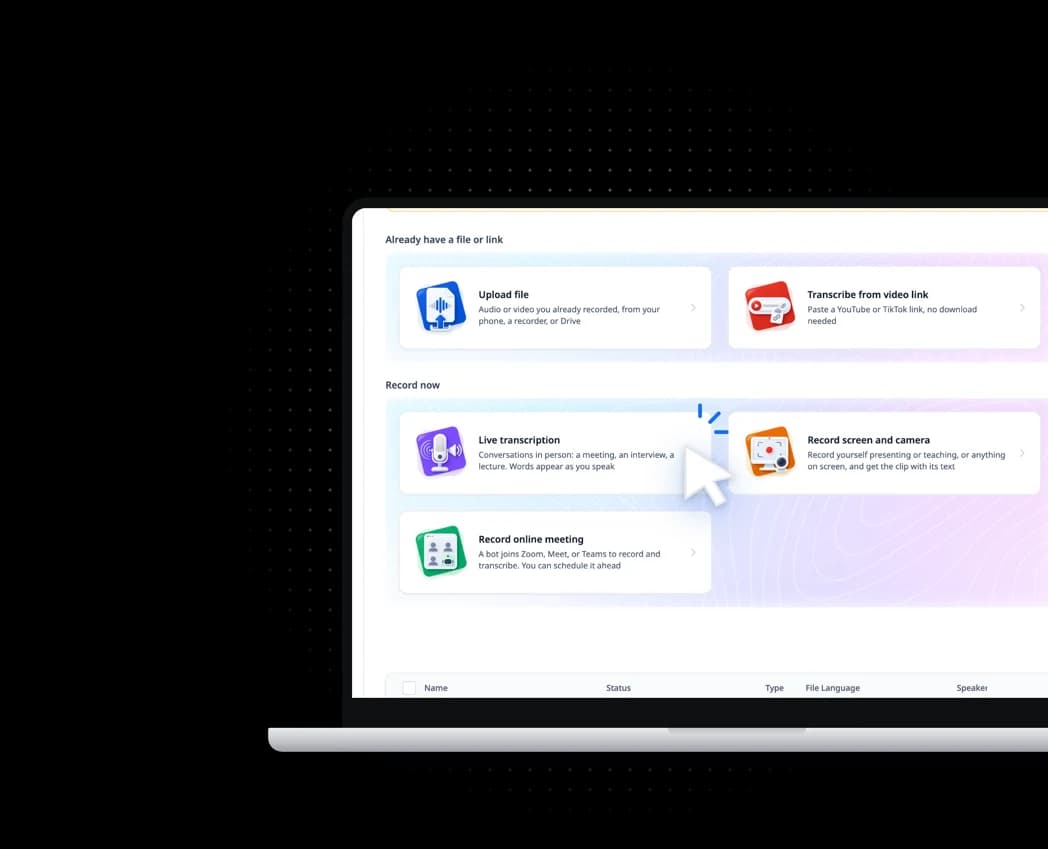
Capture key information and put it to use instantly. Try live transcription and translation today!
Try real-time transcription for free FAQ
How much does live transcription cost?
Free users can record and transcribe live for 10 minutes at a time. Live translation needs a package; with one, recordings run as long as the package allows and count against its minutes. See https://vocalog.visai.ai/pricing
How fast is the transcription after recording?
Normally, Vocalog converts speech into text after each sentence is spoken. The speed may vary depending on factors such as internet connection, computer performance, and microphone quality. We recommend checking your equipment and testing the live transcription feature before using it in a real meeting.
Can users edit the transcription in Vocalog?
Yes. Users can edit their transcriptions with tools such as find and replace, timestamp and spelling correction, key message highlights, summaries, and script checks. They can also download audio as .mp3 or .wav and export transcriptions in various file formats.
Can this feature separate speakers’ voices?
Not yet: live transcripts don't separate speakers. To separate them, download the recorded audio and upload it to transcribe again (this uses transcription minutes again).
Can it transcribe an online meeting or a video playing on my computer?
Yes. In Chrome, Edge or Opera on a computer, choose "Device sound" as the audio source, pick the tab or screen with the sound, and turn on audio sharing in the browser's dialog.
What should users do if Vocalog does not record or transcribe?
Please check your equipment as follows:
- Make sure your browser has microphone access enabled.
- With a microphone, a sound bar appears when Vocalog hears you and the text shows up after each sentence. If the sound plays on the same computer, such as an online meeting or a video, choose "Device sound" as the audio source instead of the microphone.
What should users do if their device shuts down while using Vocalog?
Vocalog automatically saves your transcription every 15 seconds, so your text will not be lost. If your device shuts down unexpectedly, Vocalog will attempt to reconnect to the internet and display the most recently saved transcription. However, any audio during the downtime cannot be recorded or transcribed.
Still have questions?
Contact us if you haven’t found the answer you’re looking for.