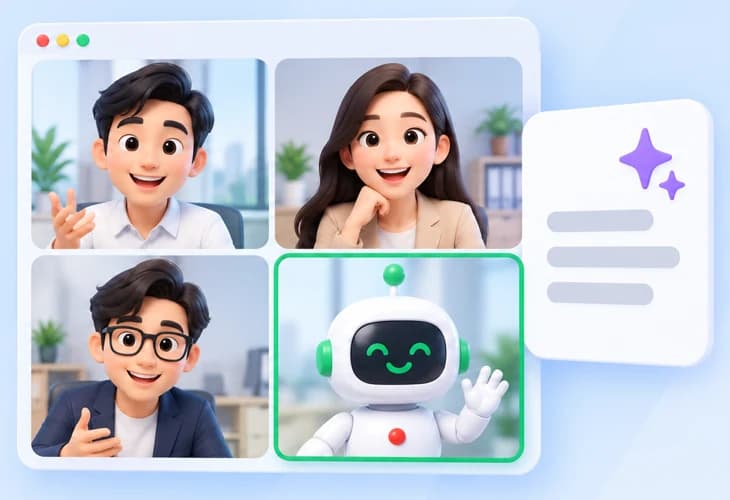
Your AI note taker for online meetings
Paste a Zoom, Google Meet or Microsoft Teams link and the bot joins now or at the time you set. No recorder to run yourself, and when the meeting ends the text is ready to summarize.
Works in your browser, nothing to install · Free: the first 10 minutes of each meeting transcribed
Works with
- Zoom
- Google Meet
- Microsoft Teams
 Daniel
 Maya
Maya Grace
GraceTranscript
Text appears here once people start talking
Why send a bot instead of recording yourself
Both get you the text. The work on your side is very different.
Recording it yourself

- A meeting app's own recording is often for the organizer only, or certain plans
- You have to attend, with your computer on the whole time
- Forget to press record and there is nothing
- The file still has to be uploaded to get a transcript
Sending the bot
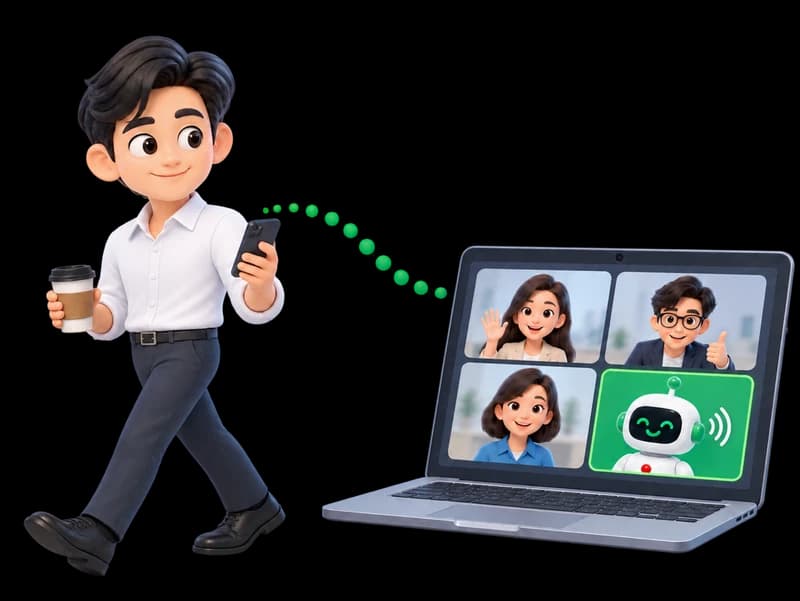
- Someone in the meeting just lets it in
- You don't have to attend, and you can send it from your phone
- Book it ahead and it joins on time by itself
- Transcription starts as soon as the meeting ends
The bot only listens. It never speaks for you
- Microphone stays off
- Camera stays off
- Doesn't answer questions in the room
Four steps
- 1
Copy the meeting link
A Zoom, Google Meet or Microsoft Teams link. The platform is detected for you.
- 2
Join now or schedule
Send the bot right away, or book it up to 14 days ahead.
- 3
Let the bot in
The bot waits in the lobby. Once in, it posts in the chat that it is recording.
- 4
Meeting ends, text arrives
When the meeting is over, the bot leaves and transcribes it by speaker.

What you get after the meeting
The meeting text is ready to use: summary, highlights, translation and downloads.
The whole meeting in text, split by who spoke, with speaker names you can set.
Pick the right way for the job
The bot is for online meetings with a link. For anything else there are two other ways.
Send a bot
- Best for
- Online meetings with a link
- Computer can be off
- Yes
- Video picture
- No
- Tells the room it is recording
- The bot posts in the chat
Record your screen
- Best for
- Online meetings where you want the picture too
- Computer can be off
- No
- Video picture
- Yes
- Tells the room it is recording
- You tell them yourself
Upload a file
- Best for
- Recordings you already have, or in-room meetings
- Computer can be off
- —
- Video picture
- If the file has it
- Tells the room it is recording
- —
| Send a botThis page | Record your screenSee screen recording | Upload a fileSee file transcription | |
|---|---|---|---|
| Best for | Online meetings with a link | Online meetings where you want the picture too | Recordings you already have, or in-room meetings |
| Computer can be off | Yes | No | — |
| Video picture | No | Yes | If the file has it |
| Tells the room it is recording | The bot posts in the chat | You tell them yourself | — |
Meetings it works for
Client and partner calls
Keep the text for follow-ups, and translate calls with partners abroad.
Online classes and seminars
Replay, search and summarize the lesson after class.
Interviews
Every answer captured, without taking notes while you talk.
Team meetings you can't make
Send the bot instead and read the summary later.
Everyone in the room knows it's recording
- Audio only, no video
- The bot posts in the chat as soon as it joins. If it can't, it doesn't record
- Before sending the bot, you confirm you have the right to record the meeting
- The organizer can remove the bot at any time, and you can stop it from the app. It leaves by itself once everyone has gone or the room has been quiet for a while
- No one but the person who sent the bot can see the recording
How long it can record
- Free account
- Records 120 min · first 10 min transcribed
- Package
- Up to 180 min per meeting
No minutes are used if the bot can't get in or records nothing. See packages
Frequently asked questions
Does someone have to let the bot in?
Yes. The bot waits in the lobby until the organizer or someone in the meeting admits it. If no one does, it leaves and no minutes are used.
Do I have to be in the meeting?
No. Someone in the meeting just has to admit the bot, and the text arrives in your account when the meeting ends.
Can I record a Zoom meeting if I'm not the host?
Yes. The bot doesn't need host rights; the organizer or anyone in the meeting just has to let it in.
Google Meet won't let me record. What can I do?
Send the bot instead. It doesn't use Google Meet's record button, which only some Google Workspace plans have.
Zoom won't let the bot in. What can I do?
Some meetings don't let bots in. Ask the organizer to allow automated participants in the Zoom settings, or use a meeting from another Zoom account.
Does it work with personal Microsoft Teams?
Yes. It works with both work and personal Microsoft Teams. Just paste the meeting link.
Can I send the bot from a phone or iPad?
Yes. Paste the link in the browser on any device. Nothing to install, and your device can be off during the meeting.
What name does the bot use in the meeting?
You can name the bot yourself on Zoom and Teams. On Google Meet it appears as Vocalog Notetaker.
Which languages can it transcribe?
Choose the language spoken in the meeting before you send the bot. 99 languages are supported, including Thai and English.
Do I get a video of the meeting?
No. The bot records audio only. If you need the picture too, record your screen instead.
How long can it record?
A free account records 120 minutes per meeting and transcribes the first 10; a package records up to 180 minutes. The bot leaves by itself once everyone has gone or the room has been quiet for a while, and you can stop it from the app at any time.
Can I use it for an in-person meeting with no link?
The bot only joins online meetings. For a meeting in a room, record live from your phone or computer, or upload a recording.
Next meeting, send the bot to take notes
Paste a meeting link. Free, no card needed.